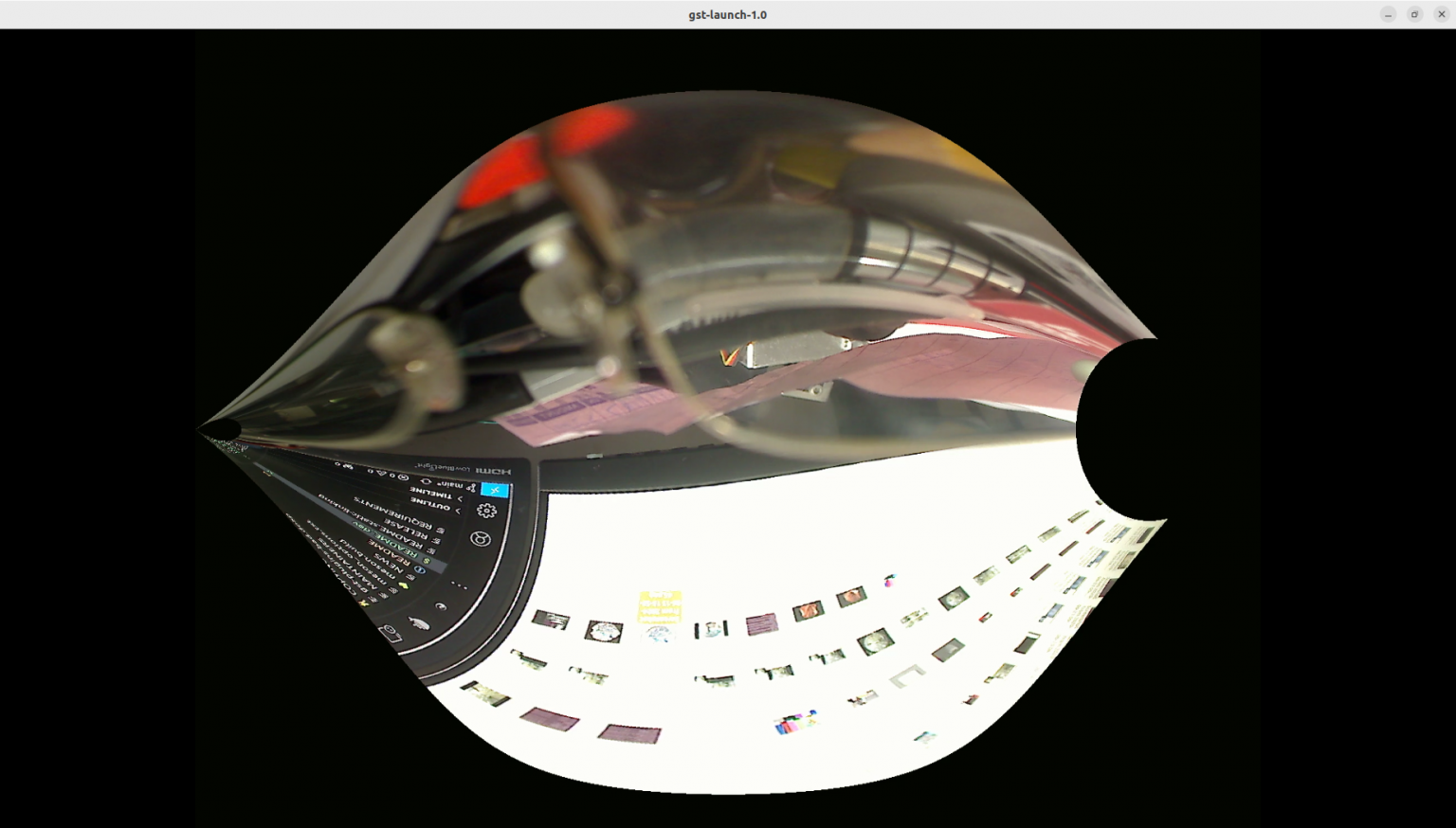
Developing the gst-plugins-bad-dev Project on PC
GStreamer is a pipeline-based multimedia framework that connects various media processing systems to handle complex workflows. It is a powerful and versatile tool for creating streaming media applications, but writing new plugins can be challenging.
Install OpenCV
To build the gst-plugins-bad-dev-project, install OpenCV by using the command below:
sudo apt install libopencv-dev python3-opencv
Install Moil Dev Library
Follow the instructions on the Github repository and install it on the x86_64 platform:
https://github.com/yourskc/moildev_install
Install GStreamer
Install GStreamer by using the link below:
https://gstreamer.freedesktop.org/documentation/installing/index.html?gi-language=c
To install GStreamer on Ubuntu 22.04, use the command below:
sudo apt install libgstreamer1.0-dev libgstreamer-plugins-base1.0-dev libgstreamer-plugins-bad1.0-dev gstreamer1.0-plugins-base gstreamer1.0-plugins-good gstreamer1.0-plugins-bad gstreamer1.0-plugins-ugly gstreamer1.0-libav gstreamer1.0-tools gstreamer1.0-x gstreamer1.0-alsa gstreamer1.0-gl gstreamer1.0-gtk3 gstreamer1.0-qt5 gstreamer1.0-pulseaudio
Basic Tutorial: Hello World
Download the example hellow world script using the link below:
https://gstreamer.freedesktop.org/documentation/tutorials/basic/hello-world.html?gi-language=c
The script can be compiled by using the command below:
gcc basic-tutorial-1.c -o basic-tutorial-1 `pkg-config --cflags --libs gstreamer-1.0`
To test that the executable is working as expected, we will use the commands gst-inspect-1.0 and gst-launch-1.0 for testing.
References:
- https://gstreamer.freedesktop.org/documentation/tools/gst-launch.html?gi-language=c
- https://gstreamer.freedesktop.org/documentation/tools/gst-inspect.html?gi-language=c#
sudo apt install gstreamer1.0-opencv
You can view the information of the source module, plugin and element by using the command below:
gst-inspect-1.0 opencv
gst-inspect-1.0 geometrictransform
gst-inspect-1.0 circle
Launching GStreamer
To launch GStreamer, we can use the command gst-launch-1.0
Examples,
Running test video
gst-launch-1.0 videotestsrc ! autovideosink
Running different patterns of video
gst-launch-1.0 videotestsrc pattern=0 ! autovideosink
Setting the resolution of the video
gst-launch-1.0 videotestsrc ! video/x-raw, width=1920, height=1080 ! autovideosink
Setting the filter for the video
gst-launch-1.0 videotestsrc ! video/x-raw, width=1920, height=1080 ! videoconvert ! circle ! videoconvert ! autovideosink
Note that the ! in the GStreamer command defines different pipelines where the GStreamer will run based on it.
Example Output:

Project Download From Github
Original Project
https://github.com/GStreamer/gst-plugins-bad
Modified Version
https://github.com/GStreamer/gst-plugins-bad-dev
This project includes a new element named equirectagular filter as a part of the gst-plugins-bad geometric transform plugin. This elememt contains GStreamer code units, build instructions and test commands.
Install Meson
Install the Meson build system by using the command below:
sudo apt-get install python3 python3-pip python3-setuptools \
python3-wheel ninja-build

pip3 install --user meson
Build
meson build
ninja -C build
After building, verify the creation of of .so file in:
<workdir>/build/gst/geometrictransform
Install the library locally for verification:
sudo cp ./build/gst/geometrictransform/libgstgeometrictransform.so /usr/lib/x86_64-linux-gnu/gstreamer-1.0
If encounter problem when building the project above, the prebuild .iso file can be downloaded.
Next, copy the .so file to your system folder,
sudo cp libgstgeometrictransform.so /usr/lib/x86_64-linux-gnu/gstreamer-1.0
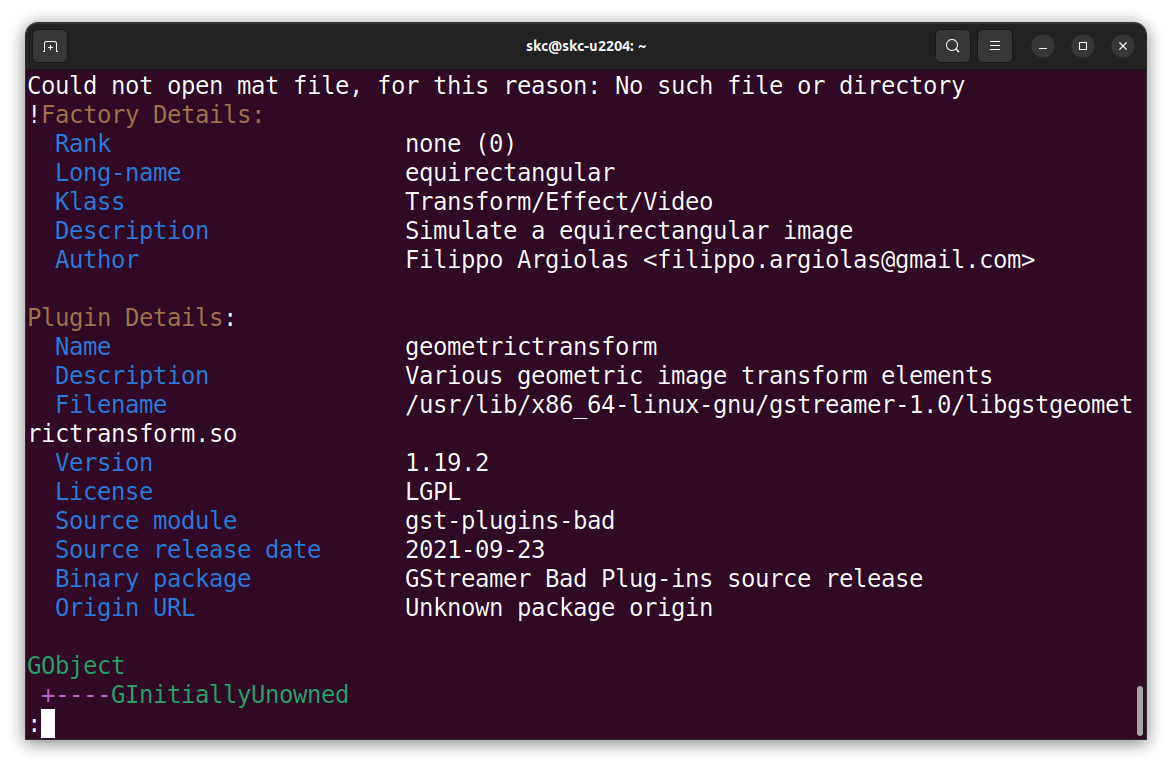
Check using gst-inspect-1.0:
gst-inspect-1.0 geometrictransform
gst-inspect-1.0 equirectangular
Expected output:
Reference:
Testing
Ensure the execution directory contains EquimatX and EquimatY files.
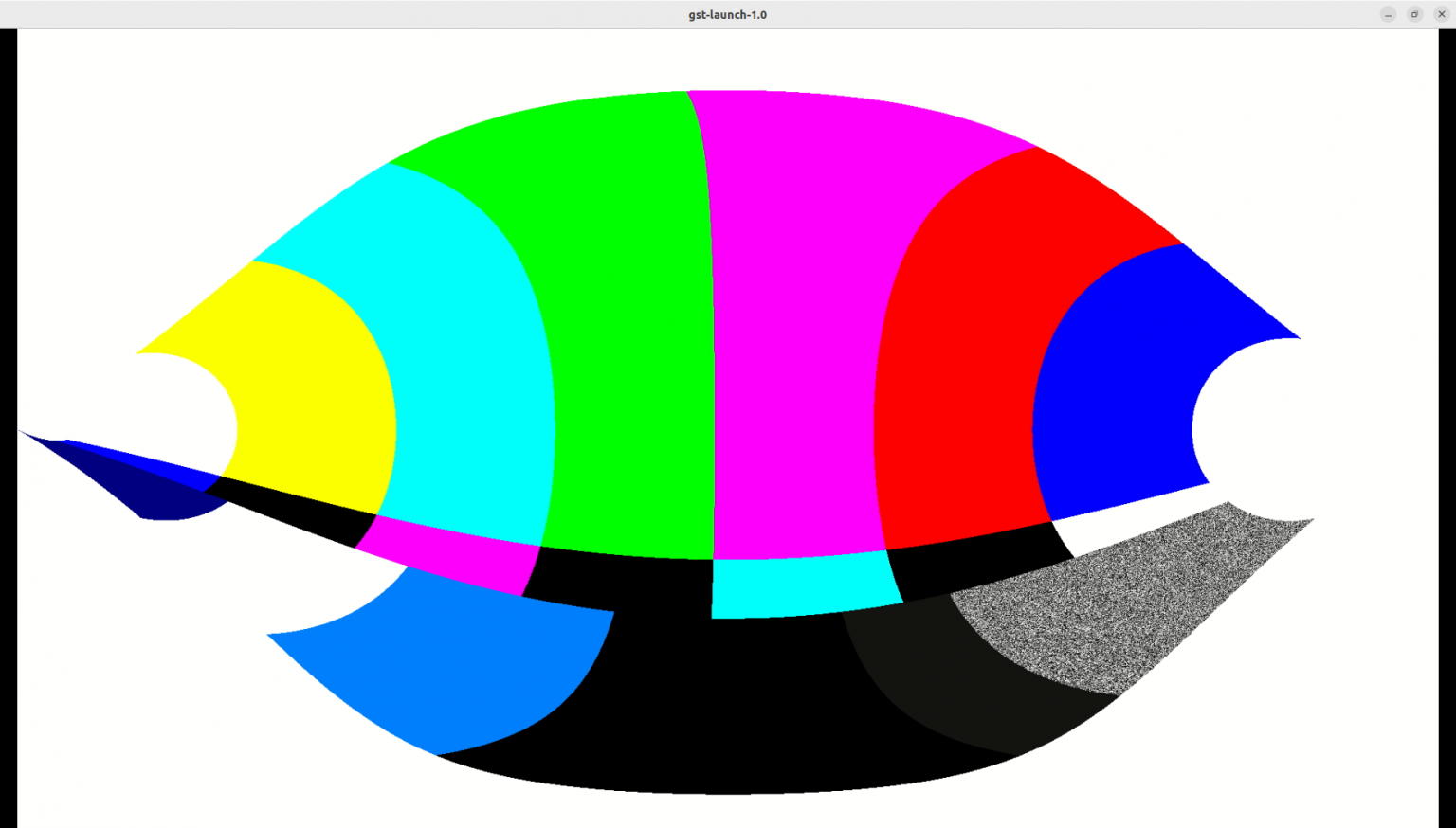
Basic Test
cd test_env
gst-launch-1.0 videotestsrc ! video/x-raw,width=1920,height=1080 ! videoconvert ! equirectangular ! videoconvert ! autovideosink
MP4 Test
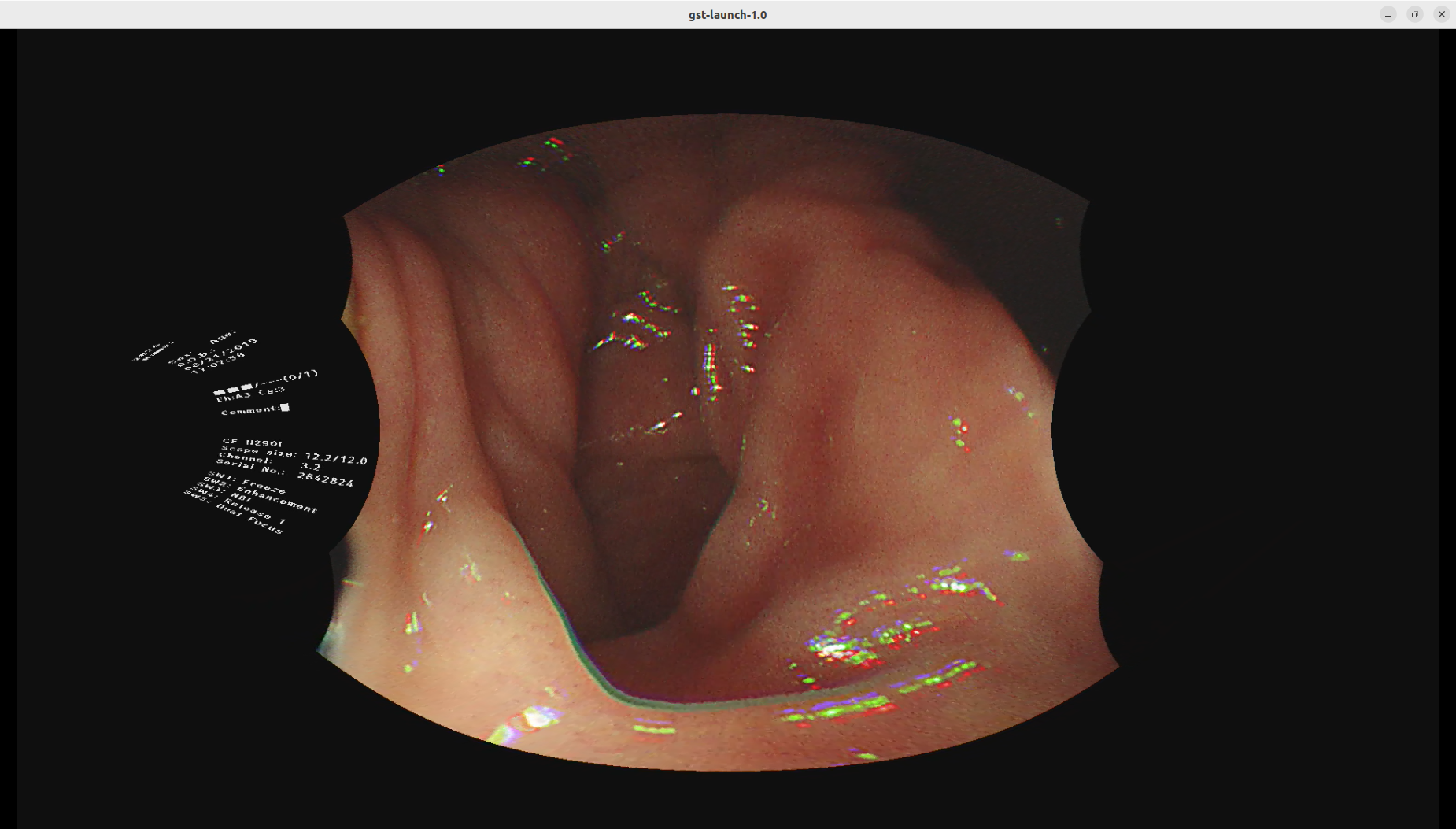
cd test_env
gst-launch-1.0 playbin uri=file:///home/skc/gst-work/gst-plugins-bad-dev/test_env/endo01.mp4 video-sink="videoconvert ! equirectangular ! videoconvert ! autovideosink"
Network Streaming Test
UDP Receiver
gst-launch-1.0 -v udpsrc uri=udp://127.0.0.1:5000 ! application/x-rtp, media=video, payload=96, encoding-name=H264 ! rtph264depay ! avdec_h264 ! videoconvert ! autovideosink
Sender
Video
gst-launch-1.0 videotestsrc ! video/x-raw, width=1920, height=1080 ! videoconvert ! equirectangular ! videoconvert ! x264enc ! rtph264pay config-interval=10 ! udpsink host=127.0.0.1 port=5000
Still image
gst-launch-1.0 filesrc location=image1920.jpg ! decodebin ! imagefreeze ! videoscale ! video/x-raw,width=1920,height=1080 ! videoconvert ! equirectangular ! videoconvert ! x264enc ! rtph264pay config-interval=10 ! udpsink host=localhost port=5000
USB Camera Test
Replace the video source with v4l2src device=/dev/video0
gst-launch-1.0 v4l2src device=/dev/video0 ! videoscale ! video/x-raw, width=1920, height=1080 ! videoconvert ! equirectangular ! videoconvert ! x264enc ! rtph264pay config-interval=10 ! udpsink host=localhost port=5000
- Installation:
sudo apt-get install v4l-utils - List All Camera Device:
v4l2-ctl --list-devices - Display Driver Information:
v4l2-ctl -d /dev/video0 -D - Get Camera Supported image format:
v4l2-ctl -d /dev/video0 --list-formatsorv4l2-ctl -d /dev/video0 --list-formats-ext
Reference: https://medium.com/@deepeshdeepakdd2/v4l-a-complete-practical-tutorial-c520f097b590